RigCage Studio — User Manual
RigCage Studio is an Android editor for the NUX MG-30 (original, Gen2). It lets you edit presets, scenes, effects, NAM captures and IRs, and the pedal's own settings, from your phone over a USB cable. You don't need a computer.
RigCage Studio is an independent app. It is not made or endorsed by NUX or Cherub Technology. "MG-30" only says which hardware it works with.
Screenshots were taken on a phone with the pedal connected (firmware 6.0.4).
Contents
- What you need
- Connecting
- Rig: editing the current preset
- Choosing models, cabs and IRs
- Saving, scenes and renaming
- Presets
- Tone assistant (AI)
- NAM captures
- Tuner
- Drum & Loop
- Settings
- Expression pedal & CTRL
- USB audio
- Backup & restore
- Troubleshooting
1. What you need
- An NUX MG-30 on firmware 6.0.4 or 6.0.5.
- Other firmware versions, and the MG-30 MKII, open view only: you can look around, but the app sends nothing that changes the pedal.
- To edit, update the pedal with NUX's MG-30 updater.
- An Android phone or tablet with a USB-C port that supports OTG (most do).
- A cable or adapter from the phone's USB-C port to the MG-30's USB port, such as USB-C to USB-B, or a USB-C OTG adapter plus the pedal's cable.
- Optional, for the tone assistant: an API key from Google Gemini (free tier), Anthropic Claude or OpenAI. See Tone assistant.
The MG-30 runs on its own power supply, so it won't drain your phone's battery.
2. Connecting
- Turn on the MG-30 and plug it into the phone.
- Open RigCage Studio. If Android asks whether to open the app for the USB device, tap OK. Ticking "always" skips this question next time.
- The app does the same handshake QuickTone does and checks the pedal's firmware. It then reads everything it needs (all 128 presets and the IR names) behind a short progress window.
- The pill at the top left shows the connection, e.g. ● NUX MG-30 · USB. Tap it to reconnect if needed.
While the pedal is connected, the screen stays on.
Without the pedal, the app opens with the last data it read, so you can look around. Connect to edit.
3. Rig: editing the current preset
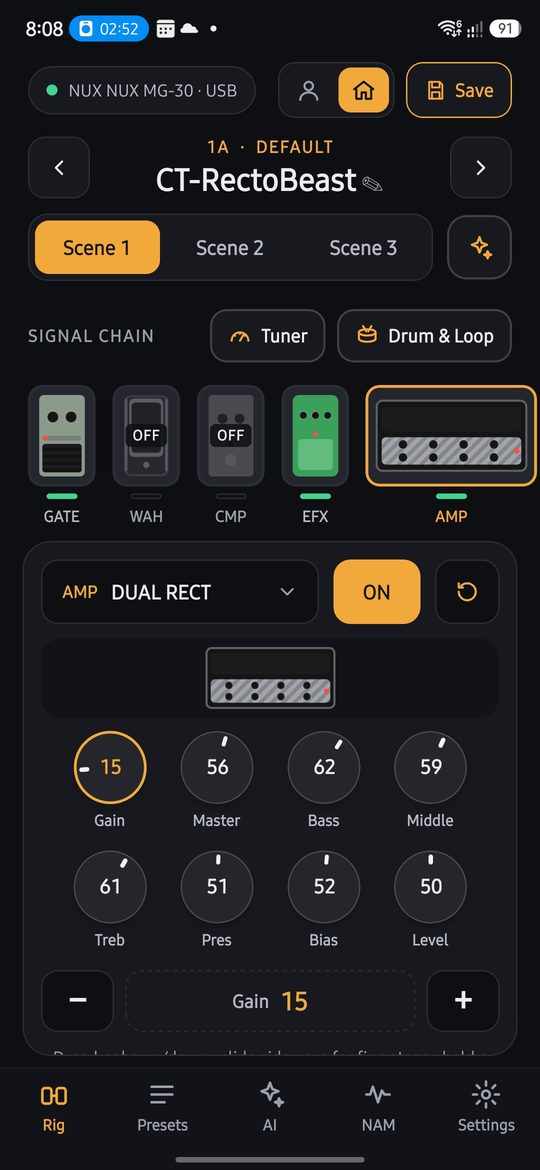
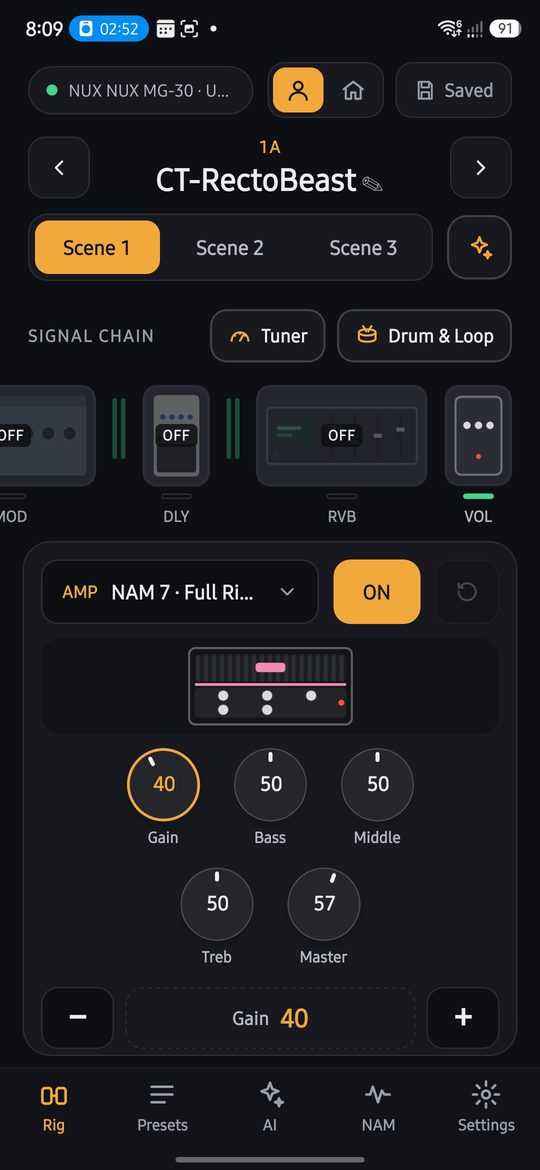
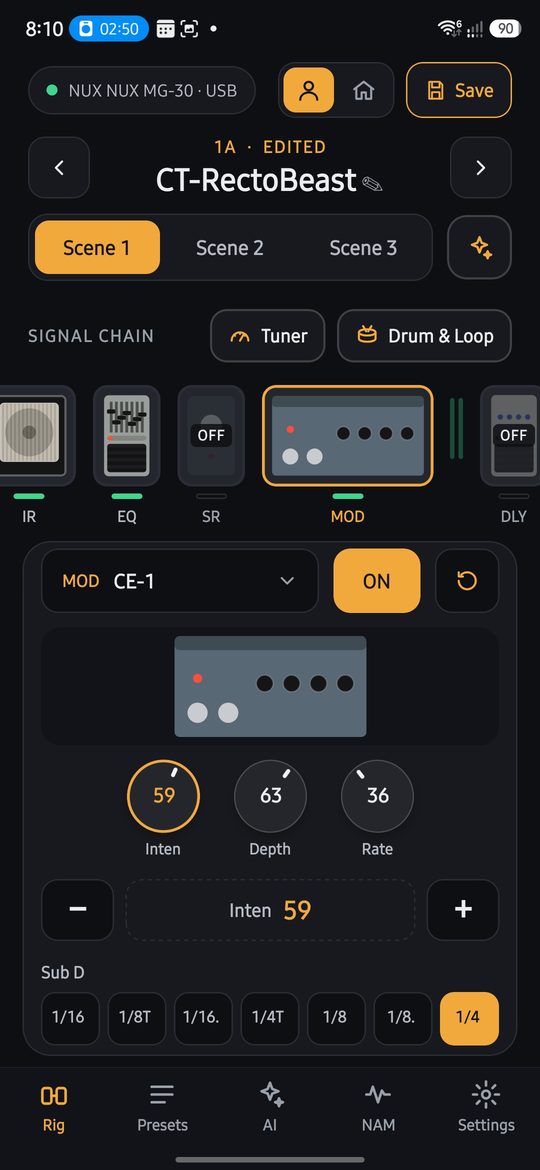
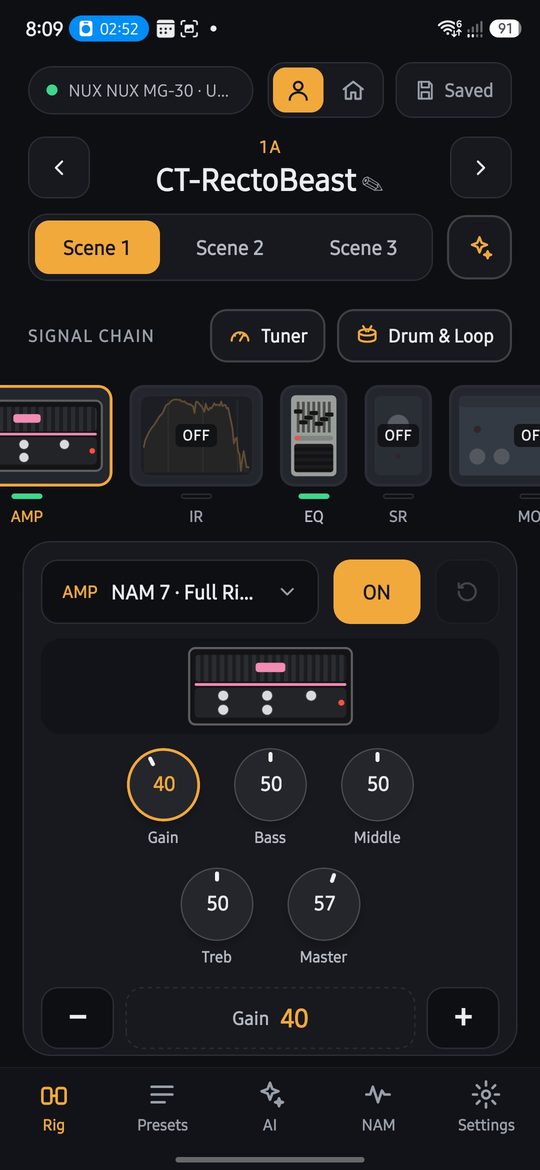
The Rig tab is the preset that's playing on the pedal right now.
Header
| Control | What it does |
|---|---|
| ‹ › and the preset name | Previous / next preset. Tap the name (✎) to rename. Above the name: the slot (e.g. 1A), plus EDITED when there are unsaved changes or DEFAULT when you're viewing the factory version. |
| 👤 / ⌂ | User / Default: switch between your stored preset and its factory default (QuickTone's USER / FACTORY). |
| Save / Saved | Stores all 3 scenes in the current slot. See Saving. |
| Scene 1 / 2 / 3 | Switch scenes, just like the footswitches. Long-press a scene to rename it or copy another scene into it. |
| ✨ | Adjust with AI: describe a small change to this scene, e.g. "more gain" or "match volume". Each change can be undone. |
| Tuner, Drum & Loop | Shortcuts to those pages. |
Signal chain
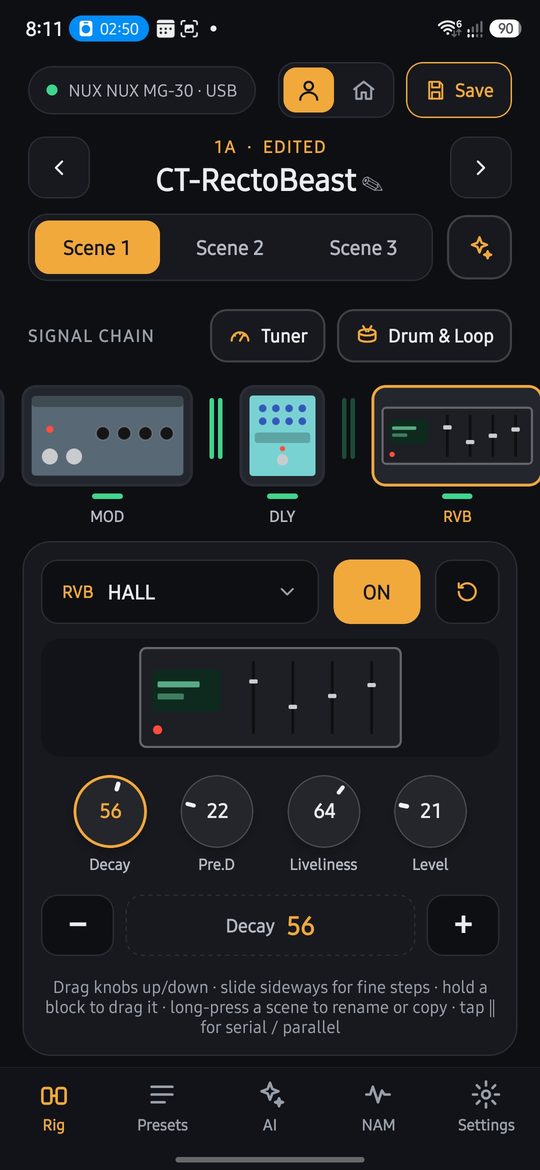
- Each tile is a block (WAH, GATE, CMP, EFX, AMP, IR, EQ, S/R, MOD, DLY, RVB, VOL). The bar under a tile is green when the block is on; OFF means it's bypassed.
- Tap a block to edit it below.
- Hold and drag a block to move it in the chain. AMP and IR move together.
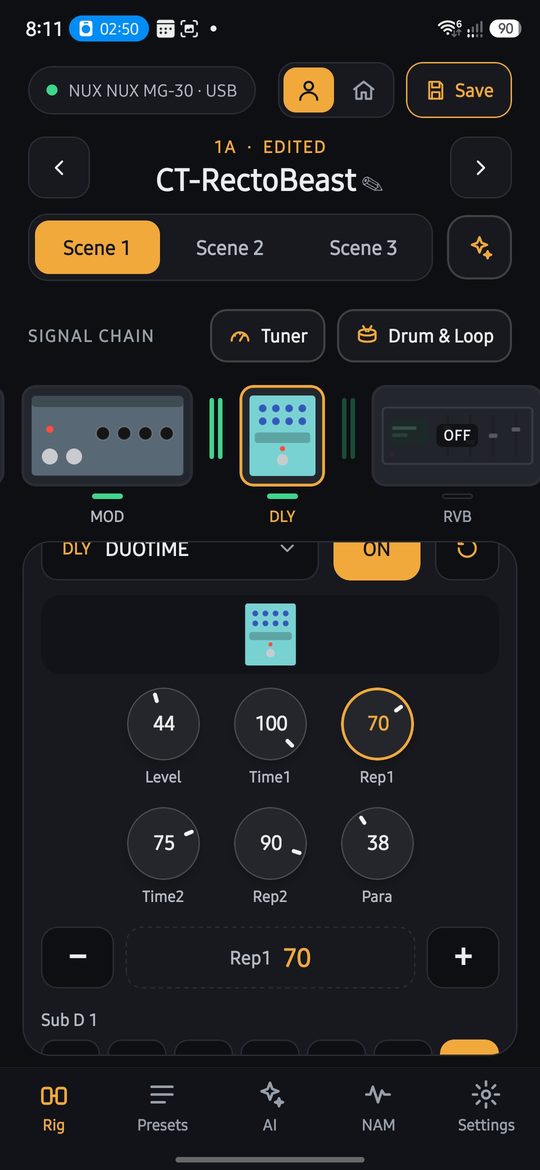
- The ‖ marks between MOD/DLY and DLY/RVB switch that pair between serial and parallel.
Block editor (below the chain)
- The model name, e.g. AMP DUAL RECT: opens the model picker.
- ON / OFF: turns the block on or off.
- ↺: resets the block to how the preset was last saved.
- Knobs: drag up or down. Slide sideways while dragging for fine steps. The − / + buttons step the last-touched knob by one, and tapping the value lets you type a number.
- Selectors: some models have them, e.g. note subdivisions on MOD and DLY (Sub D, 1/16 … 1/4).
- EQ blocks show sliders by default; you can switch to knobs in Settings.
- Para EQ shows a response graph like QuickTone's: one coloured curve per band, plus their sum.
- The VOL block holds the scene volume (±12 dB, one per scene) and the volume pedal's MIN / MAX.
Changes play on the pedal immediately. They're only stored once you tap Save.
4. Choosing models, cabs and IRs
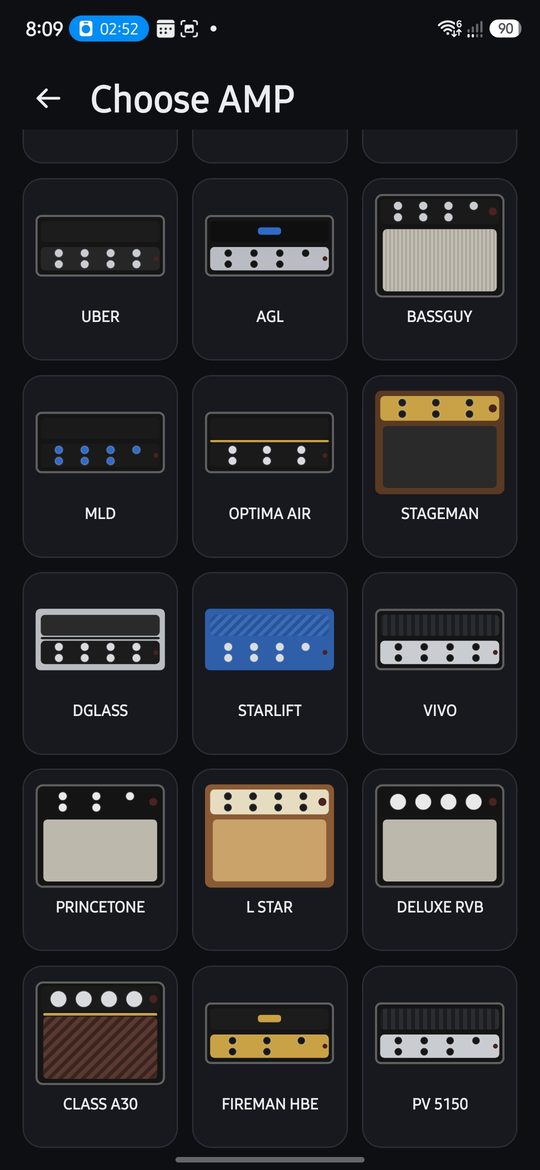
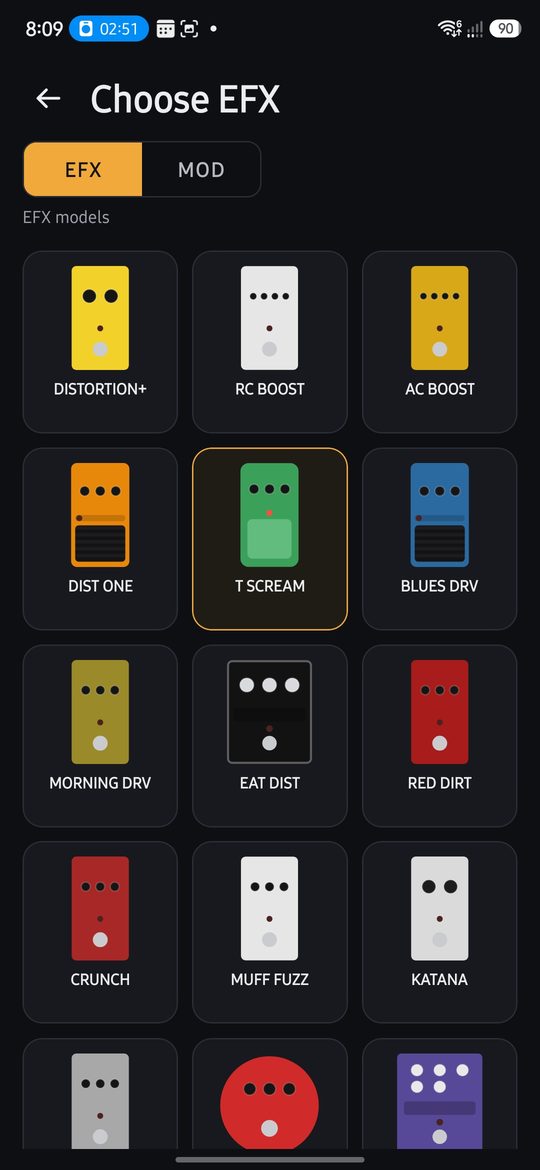
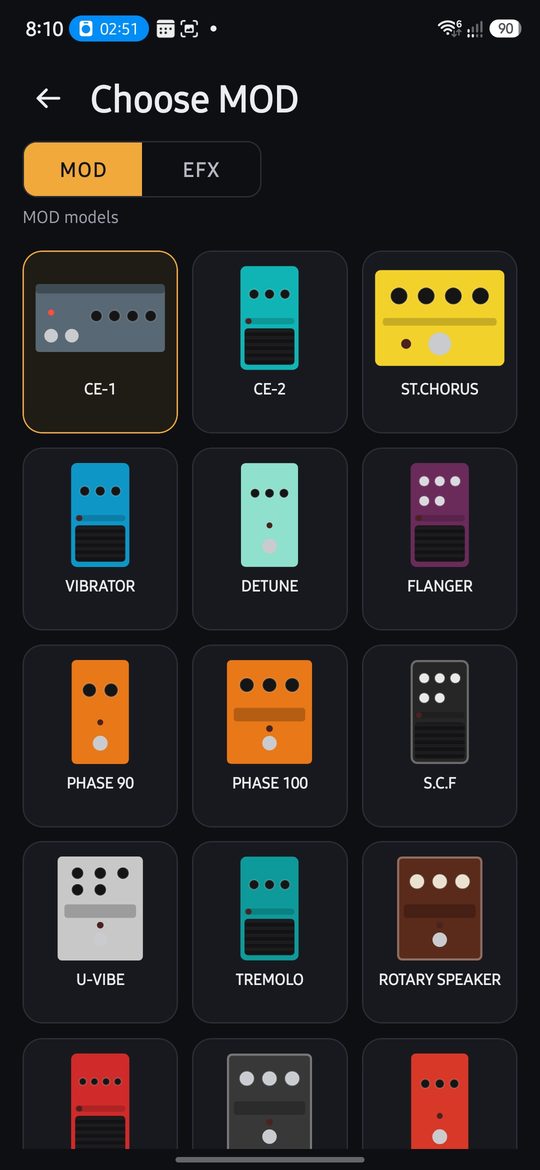
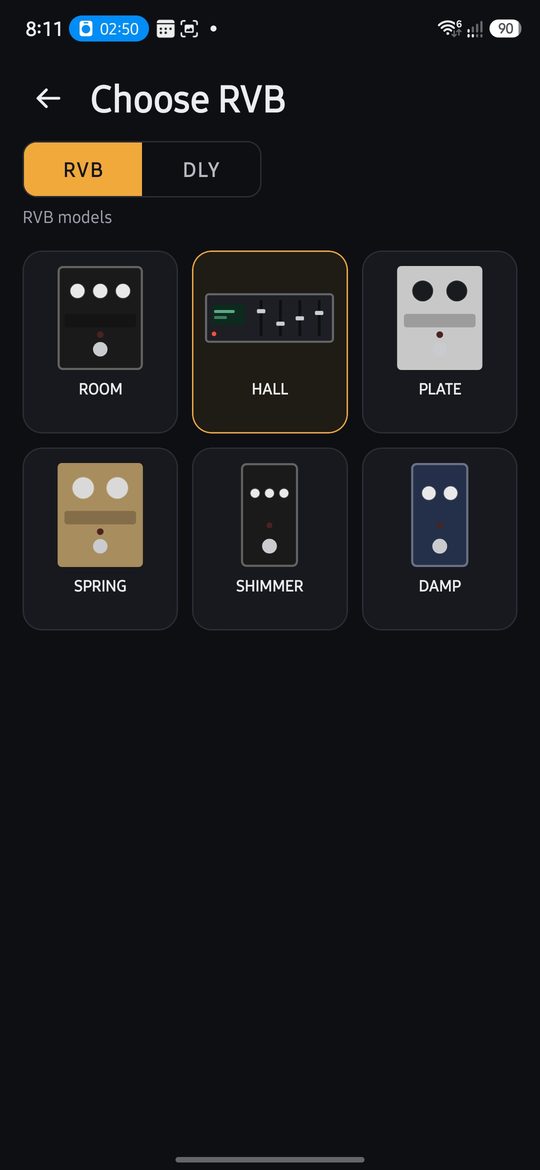
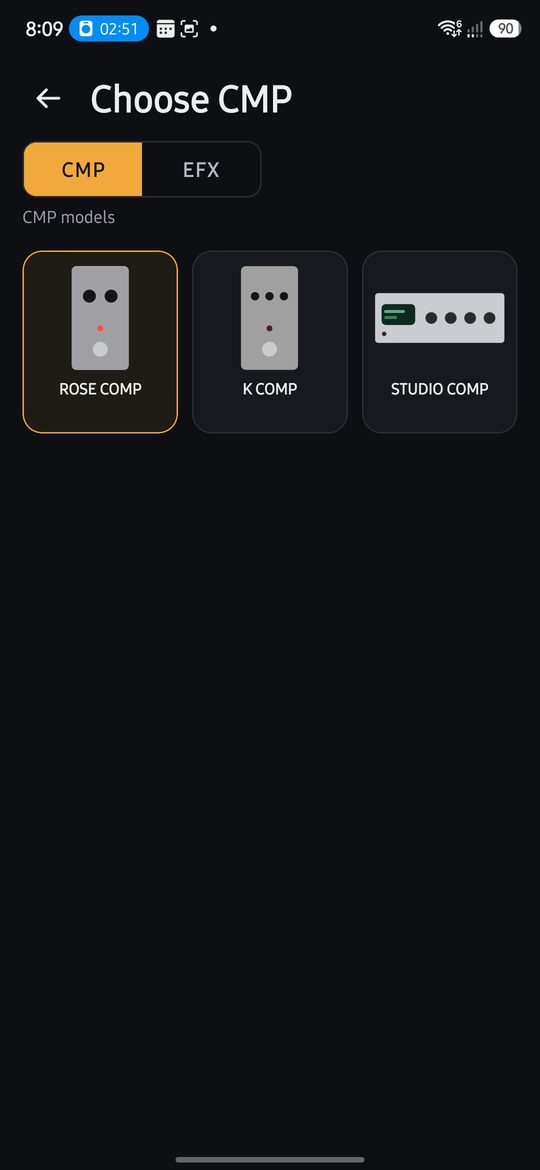
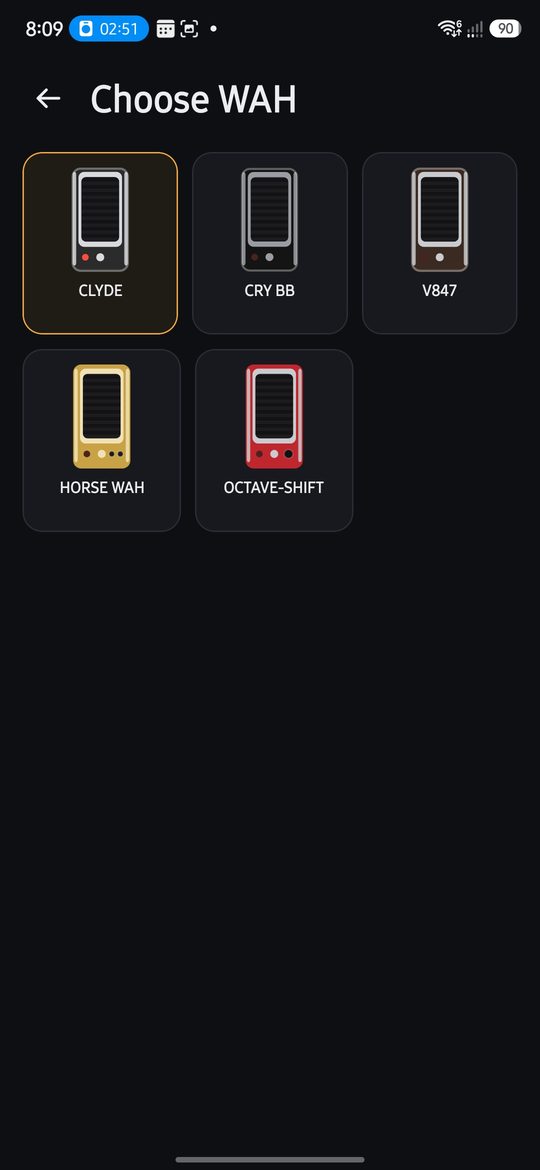
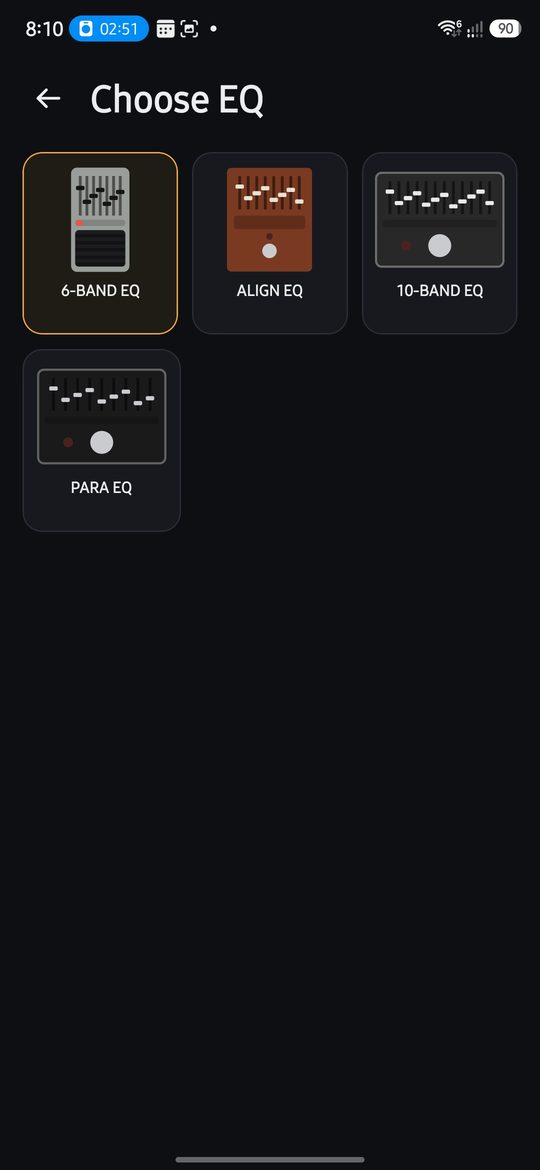
Tap a block's model name to see every model for that block. The current one is outlined.
- Every model and knob in QuickTone's catalog is here, with original drawings in the colour family the pedal uses. Your NAM captures appear as amps.
- Tabs at the top (EFX | MOD, CMP | EFX, RVB | DLY) swap a slot to the other block type, as the pedal allows. For example, a CMP slot can hold an EFX, and a RVB slot a delay. Swaps apply per scene.
IRs and cabs
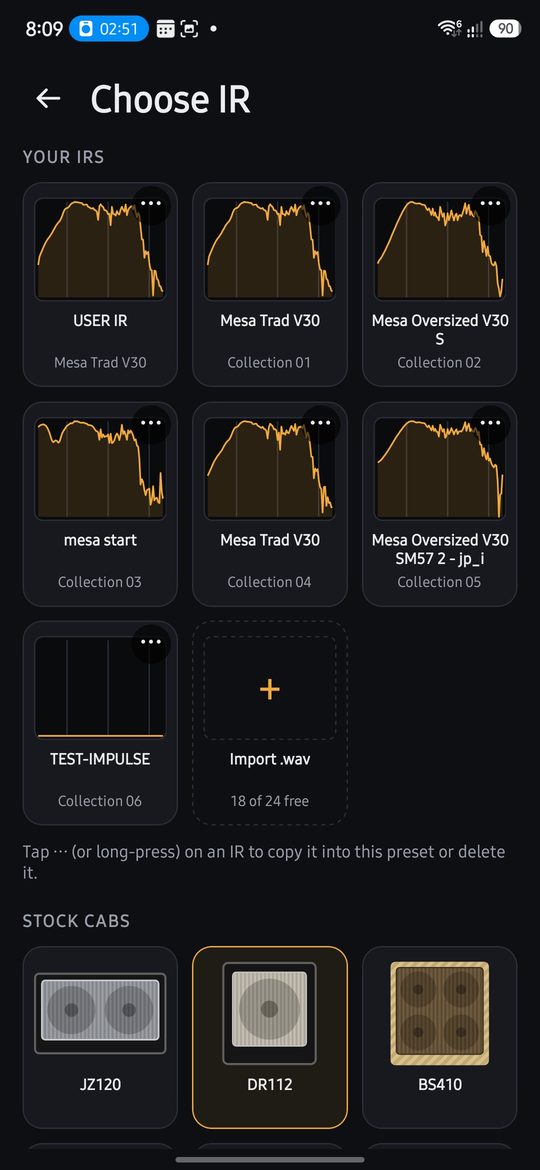
- Your IRs
- USER IR is the preset's own IR. The 24-slot IR collection follows it, each shown as the pedal's response graph.
- Import .wav adds an IR to a free collection slot.
- Tap ⋯ (or long-press) on a collection IR to copy it into this preset or delete it.
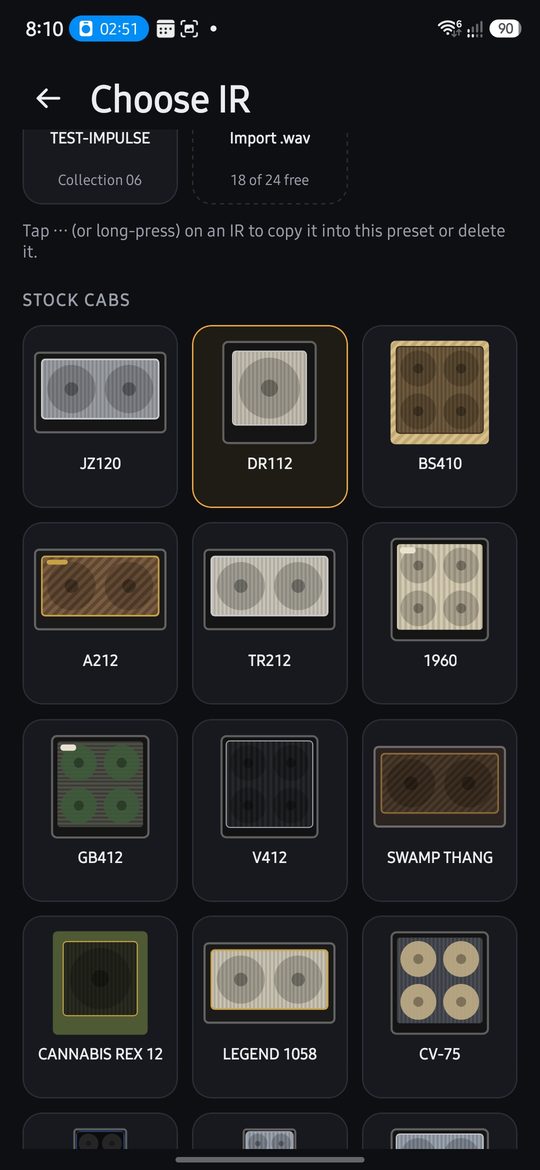
- Stock cabs: all 23 cabs. Cabs 1–8 also have mic and position settings. Every cab has level and low/high cut.
5. Saving, scenes and renaming
- Save stores all 3 scenes of the current preset in its slot. The app asks first and names the preset it will overwrite. Unsaved knob moves are included.
- Save as… stores the preset in another slot and keeps the original. It has a name step, so you can rename on the way.
- Scene copy: long-press a scene → Copy a scene into it…. The source can be another scene in this preset or a scene from any other preset.
- Scene names: long-press a scene → Rename. Scene names are kept on this phone only; the MG-30 doesn't store them.
- Preset names: tap the name on the Rig, or long-press a preset in the list. Up to 16 characters.
- Default version: with ⌂ (Default) selected, Save replaces your preset with the factory one. Use Save as… to put the factory preset in another slot instead.
6. Presets
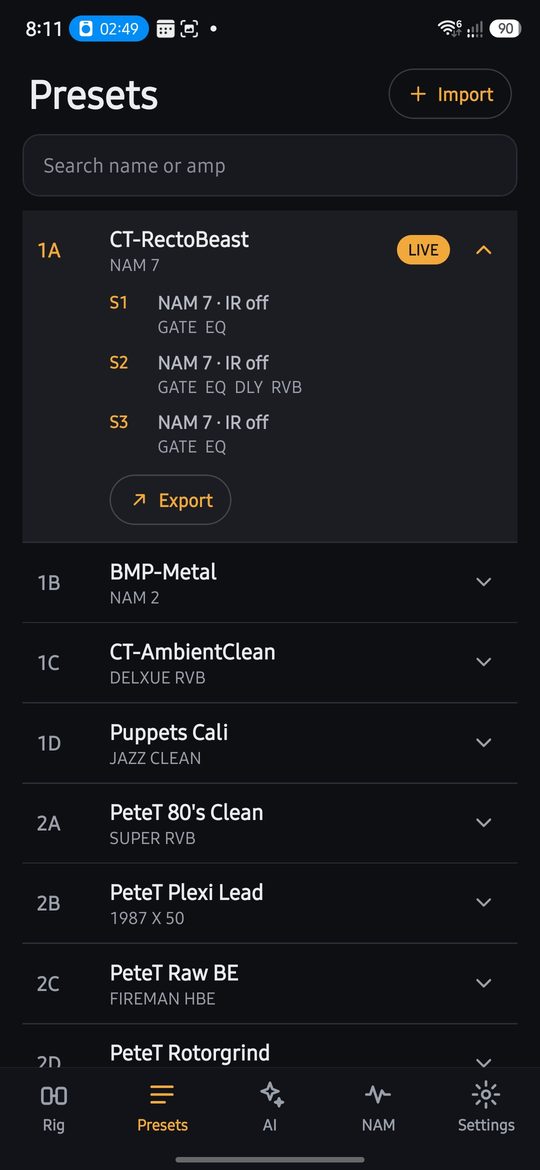
- The list: all 128 presets (1A–32D), each with its amp. LIVE marks the one that's playing.
- Search by preset name or amp.
- Tap a preset to load it. Tap ⌄ to preview its 3 scenes (amp, IR and active blocks) without loading it.
- Export: saves the preset as a QuickTone
.mg30patchfile and opens the share sheet (Drive, chat, email…). The file includes the user IR when a scene uses it. - Import: opens a
.mg30patchfile from QuickTone or from another RigCage user.- A sheet shows what's in the file (scenes, cab IR) and which slot it goes to. It starts at the current slot; change it with ‹ › or the list.
- The sheet warns you before anything is overwritten.
- Older single-scene files are converted, as QuickTone does.
- Long-press a preset to rename it.
7. Tone assistant (AI)
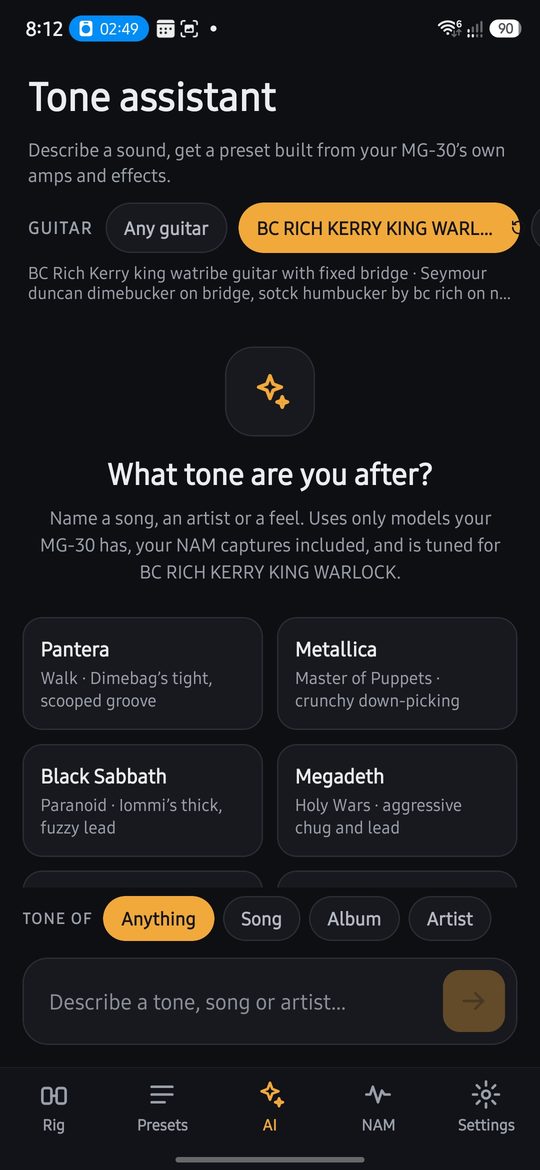
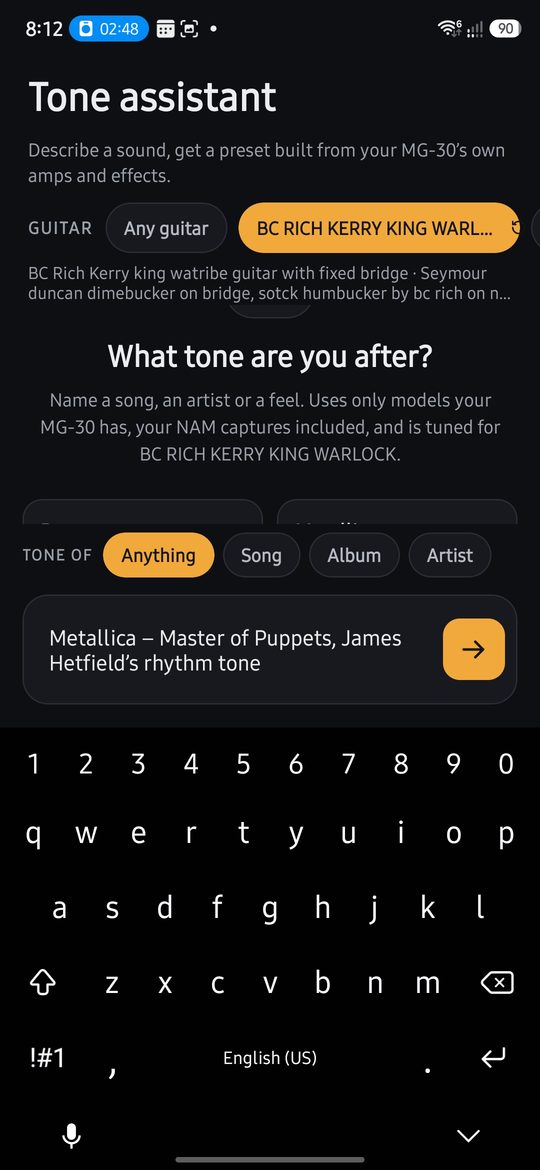
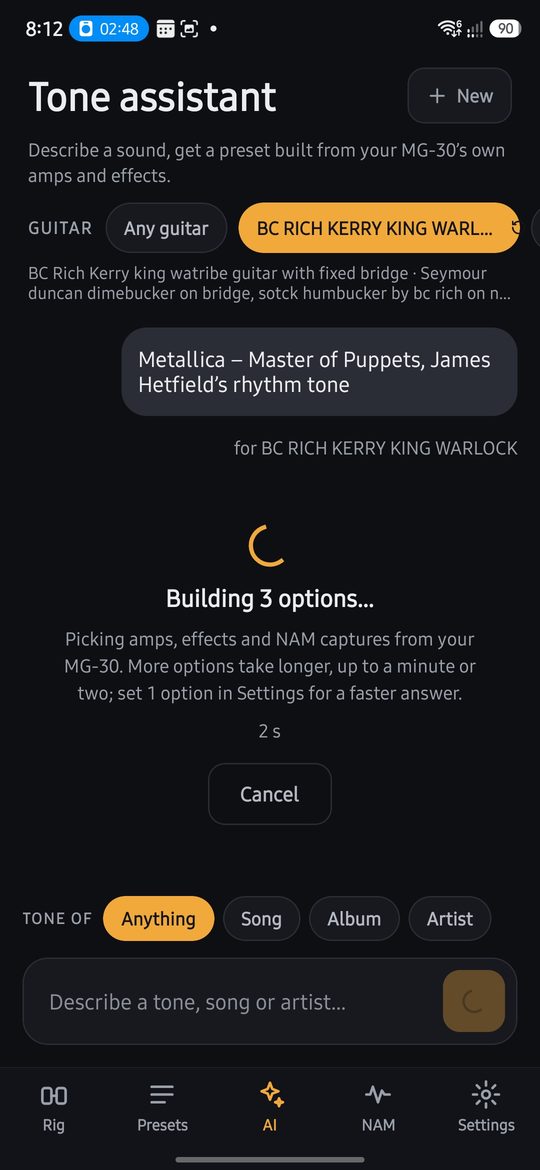
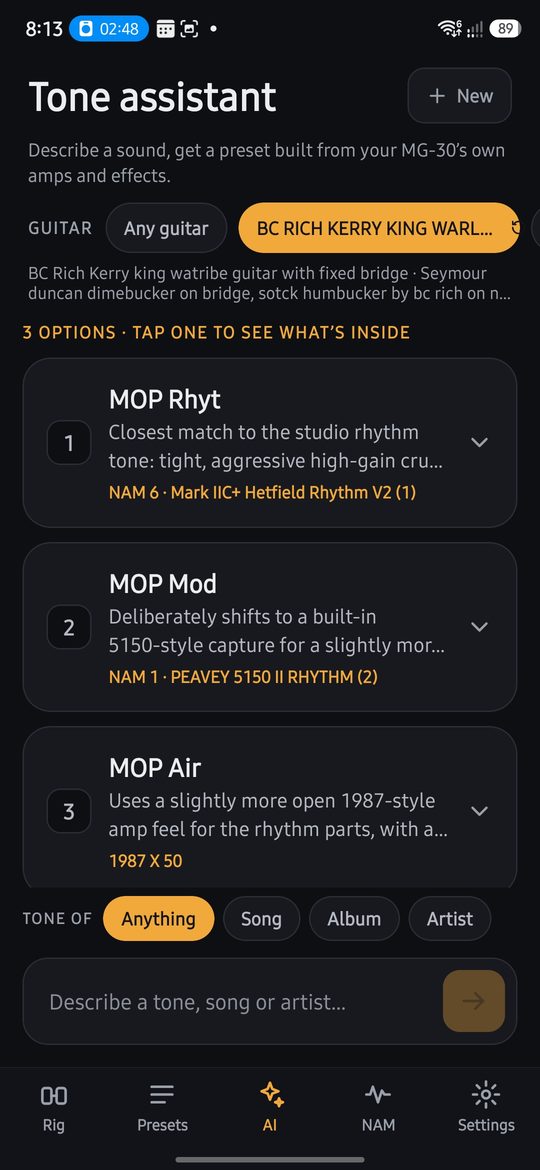
Describe a sound, song, album or artist. The assistant builds 1–3 preset options, each with 3 scenes. They use only the amps, cabs and effects your MG-30 has, plus your loaded NAM captures.
- Set up a key first, in Settings → AI presets (see Settings).
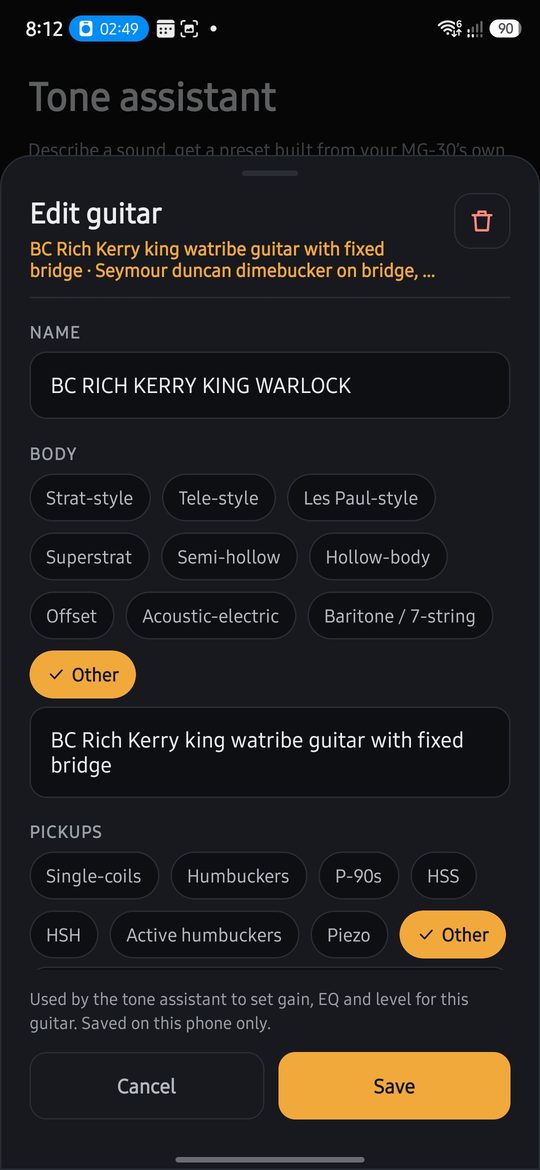
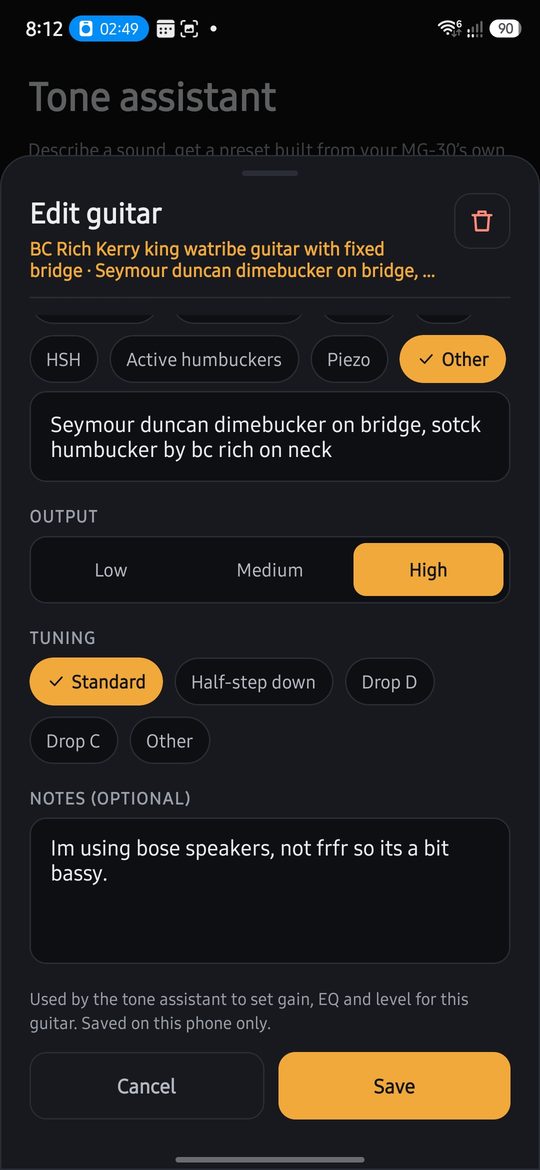
- Pick a guitar, or Any guitar. Each guitar profile (body, pickups, output, tuning, notes) tunes gain, EQ and level to that instrument and what you play through.
- Pick what you're naming under Tone of: Anything, Song, Album or Artist. Type a description, or tap a suggestion such as "Pantera", then tap →.
- Wait for the options. It takes a few seconds to a minute or two, depending on the provider and the number of options. Settings → Options per request set to 1 is fastest.
- Open an option to see why it was chosen and the blocks in each scene.
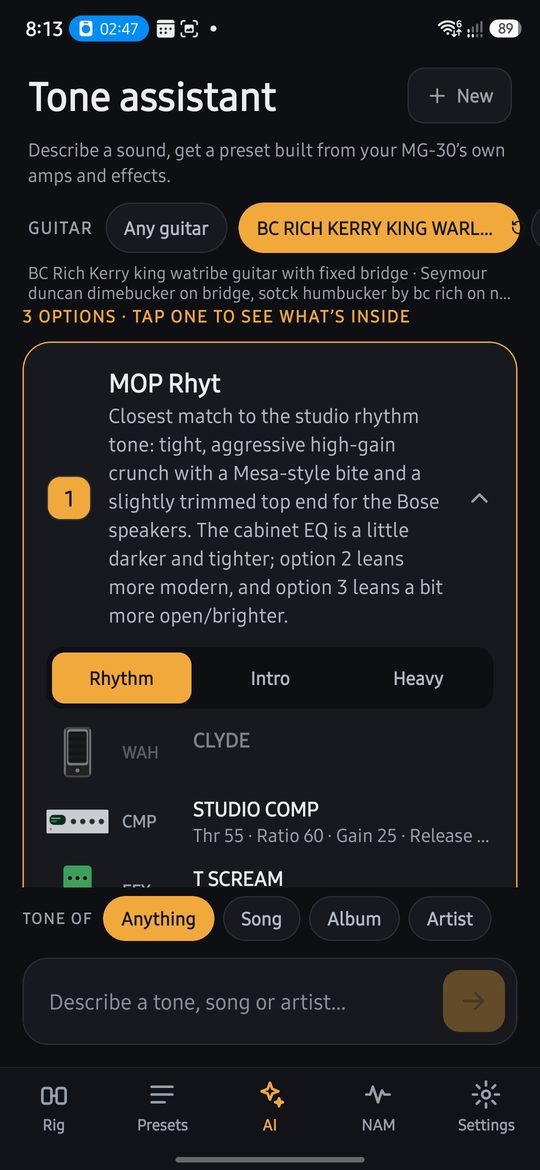
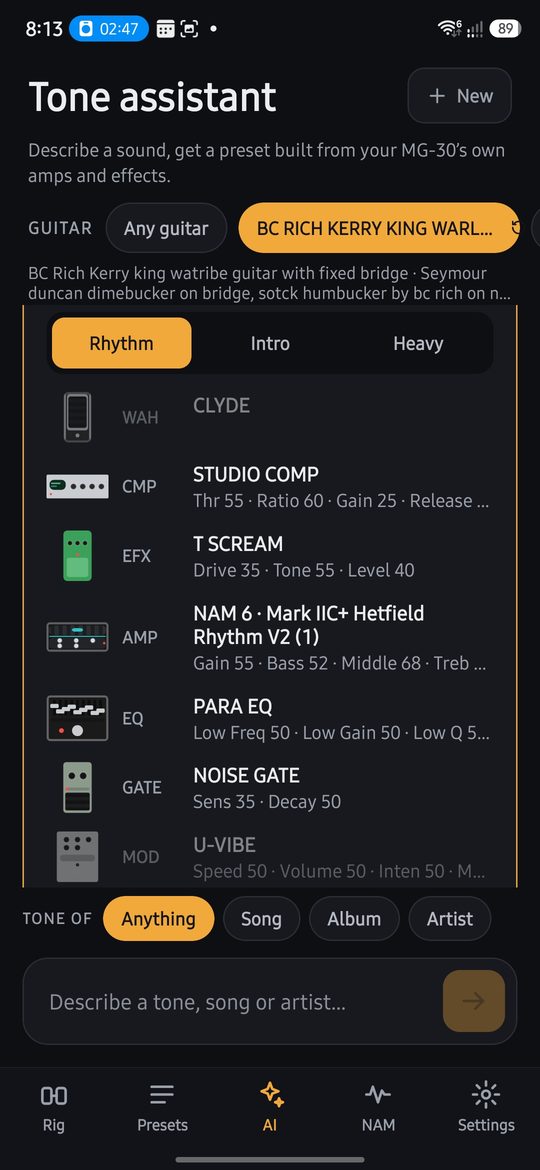
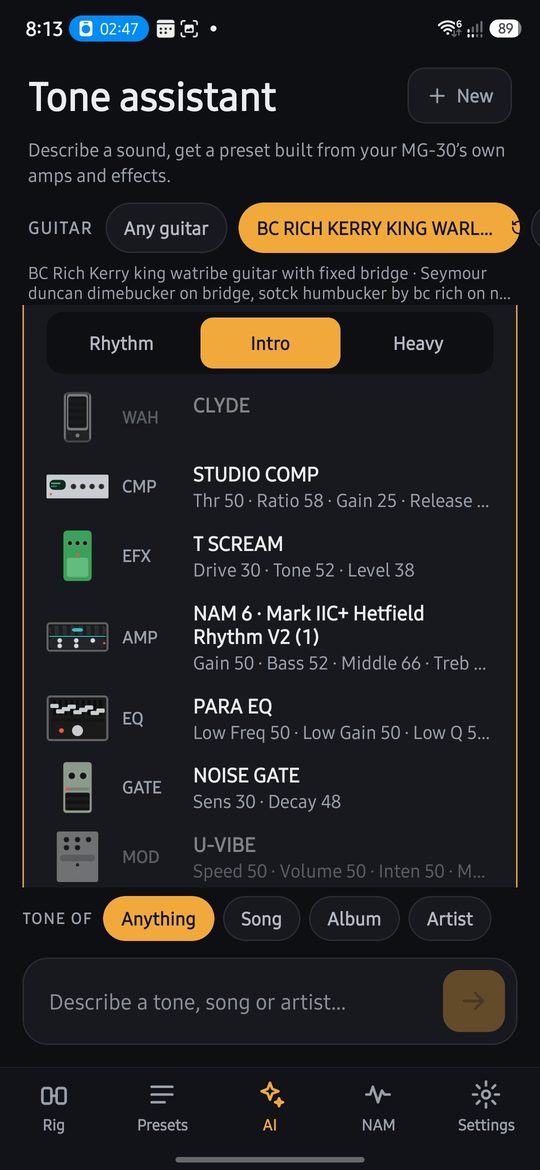
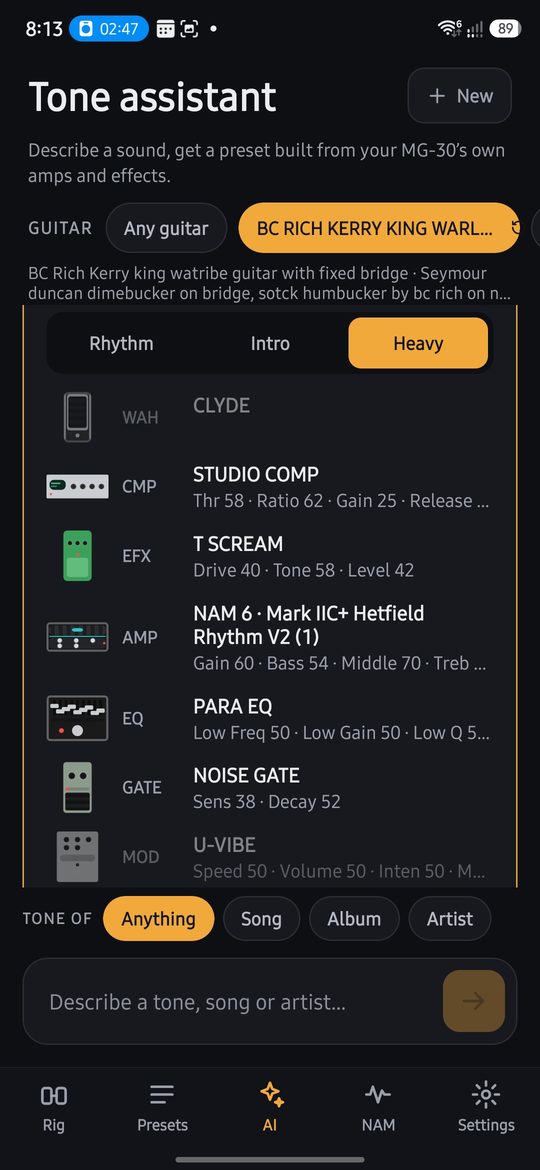
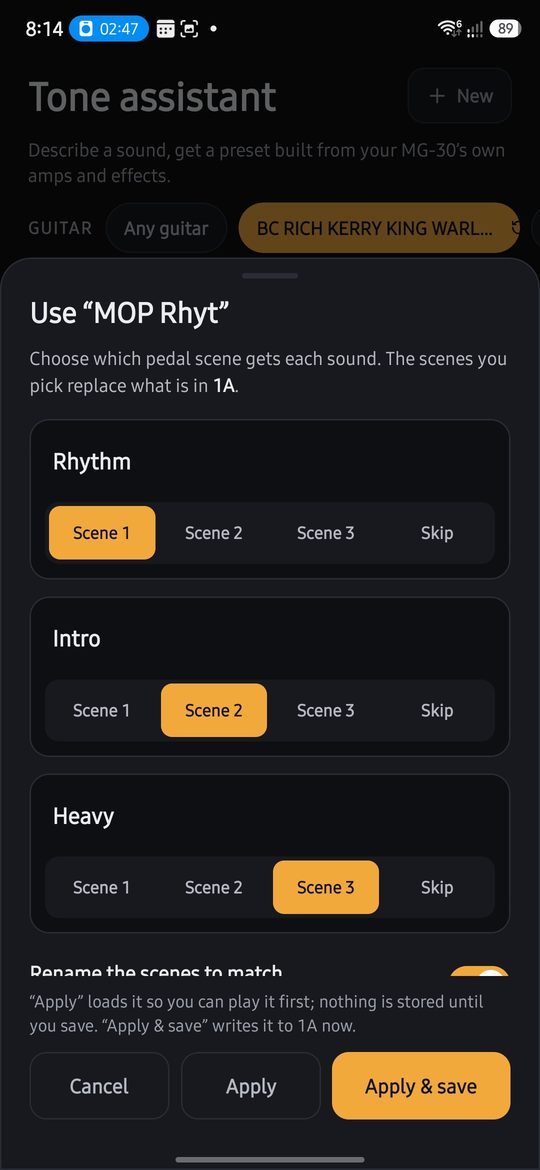
- Tap "Use" to place it.
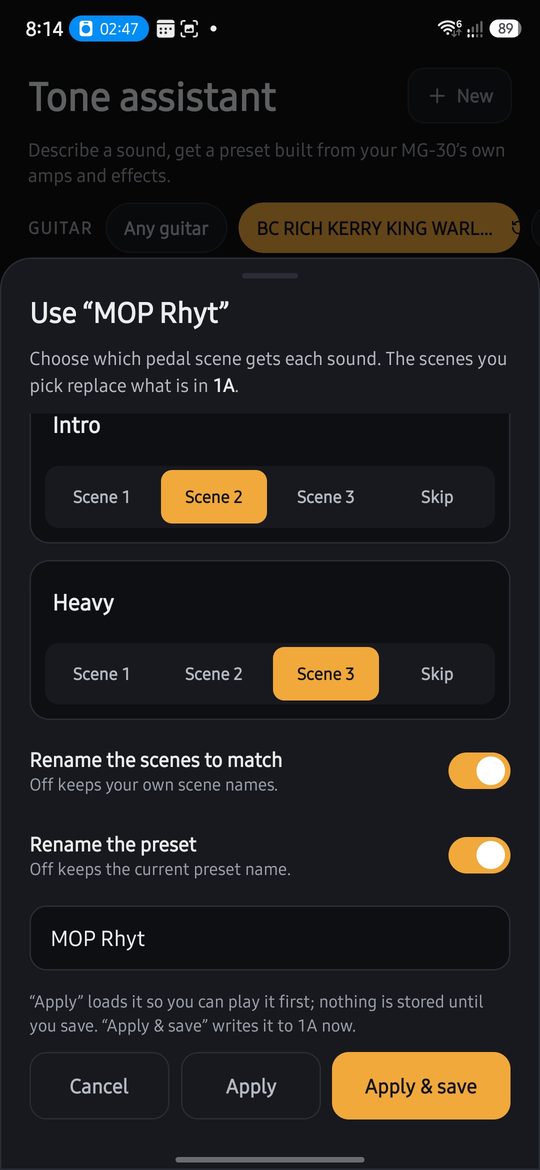
- Map each AI scene to a pedal scene, or skip it.
- Choose whether to rename the scenes and the preset.
- Apply loads it so you can play it first; nothing is stored. Apply & save writes it to the current slot.
Guitar profiles are kept on this phone only.
Adjust with AI: on the Rig, ✨ makes small changes to the current scene. Each one can be undone.
What gets sent to the AI provider: your description and the MG-30's model list. Calls go straight from your phone to the provider. Your key never leaves the phone and is never logged.
8. NAM captures
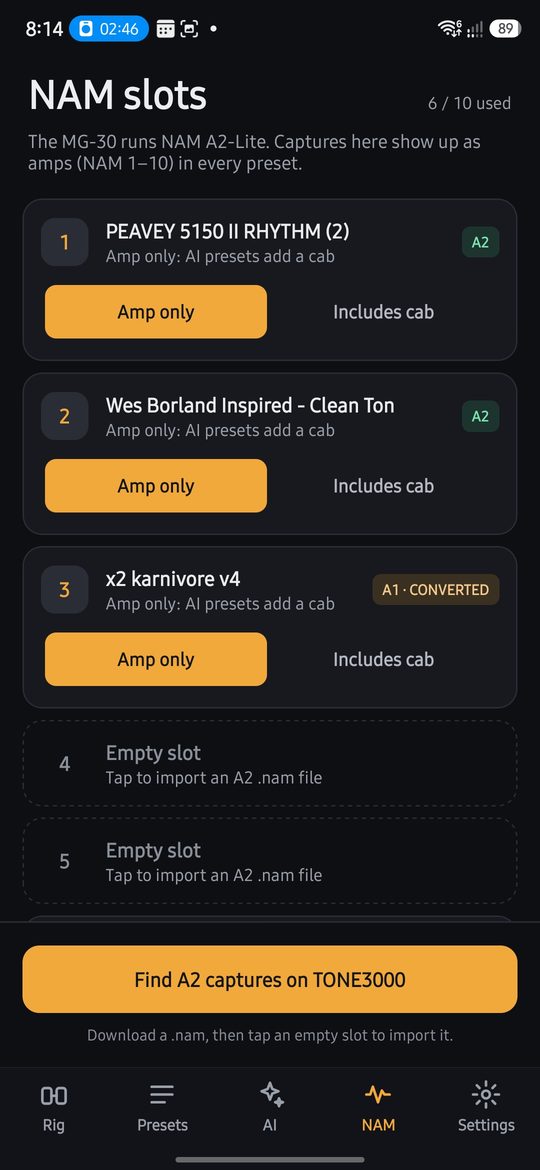
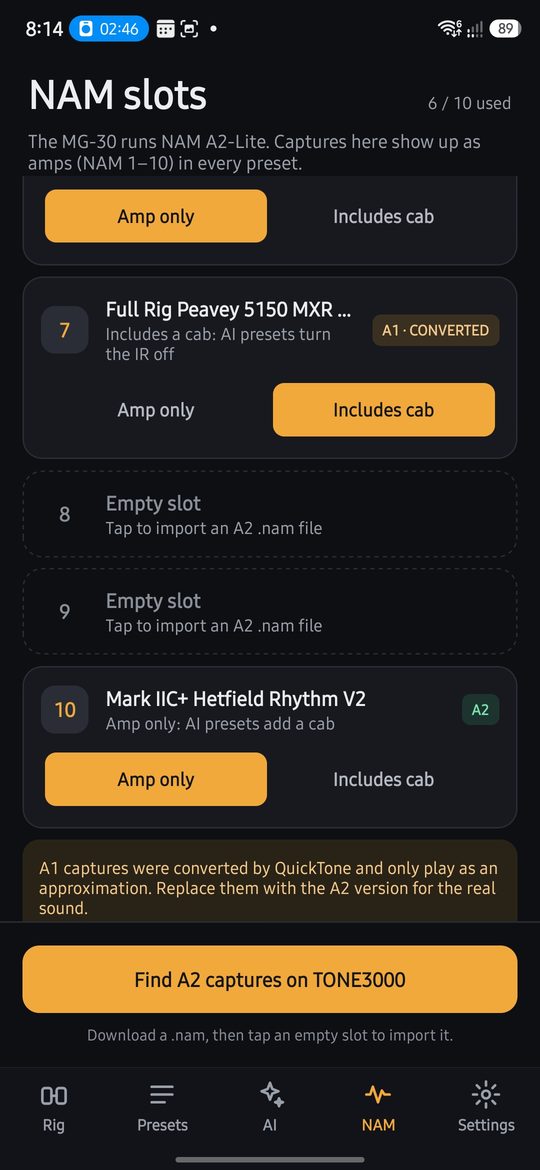
The MG-30 has 10 NAM slots. Captures there show up as amps (NAM 1–10) in every preset.
- Tap an empty slot to import an A2
.namfile. The upload is byte-identical to QuickTone's. - Mark each capture Amp only or Includes cab. The tone assistant uses this:
- Amp only: AI presets add a cab.
- Includes cab: AI presets turn the IR off.
- A1 · CONVERTED captures were converted by QuickTone and only play as an approximation. Replace them with the A2 version for the real sound.
- Find A2 captures on TONE3000 opens the website. Download a
.namthere, then tap an empty slot to import it.
9. Tuner
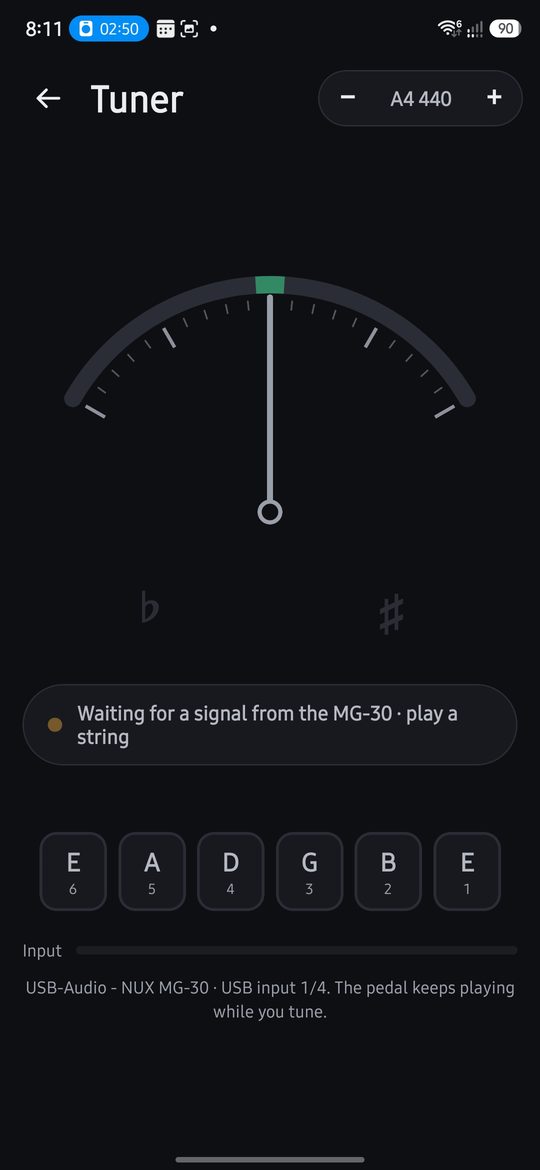
The MG-30 doesn't send tuner data over MIDI. Instead, RigCage listens to the pedal's USB audio input and detects the pitch itself.
- The needle shows cents flat or sharp, and goes green when you're in tune.
- The string row (E A D G B E) shows the nearest standard-tuning string.
- The reference is adjustable from A4 430–450 Hz with − / +.
- The pill shows what the tuner is waiting for: connecting to the audio, a signal, or a single note.
- The pedal keeps playing while you tune.
10. Drum & Loop
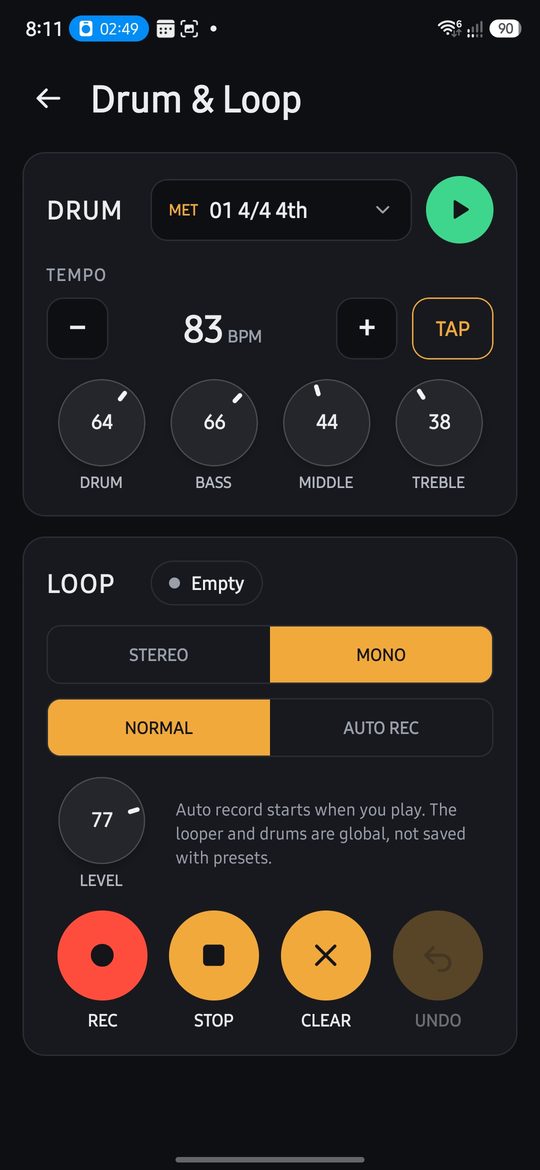
- Drum
- 75 patterns in QuickTone's 11 groups. ▶ plays and stops.
- Tempo from 30 to 480 BPM, with TAP.
- Drum level, and Bass / Middle / Treble.
- Loop
- REC / PLAY / DUB, STOP, CLEAR and UNDO / REDO, showing the pedal's state live.
- Stereo / Mono, Normal / Auto rec (auto record starts when you play), and loop level.
The looper and drums are global settings, not saved with presets.
11. Settings
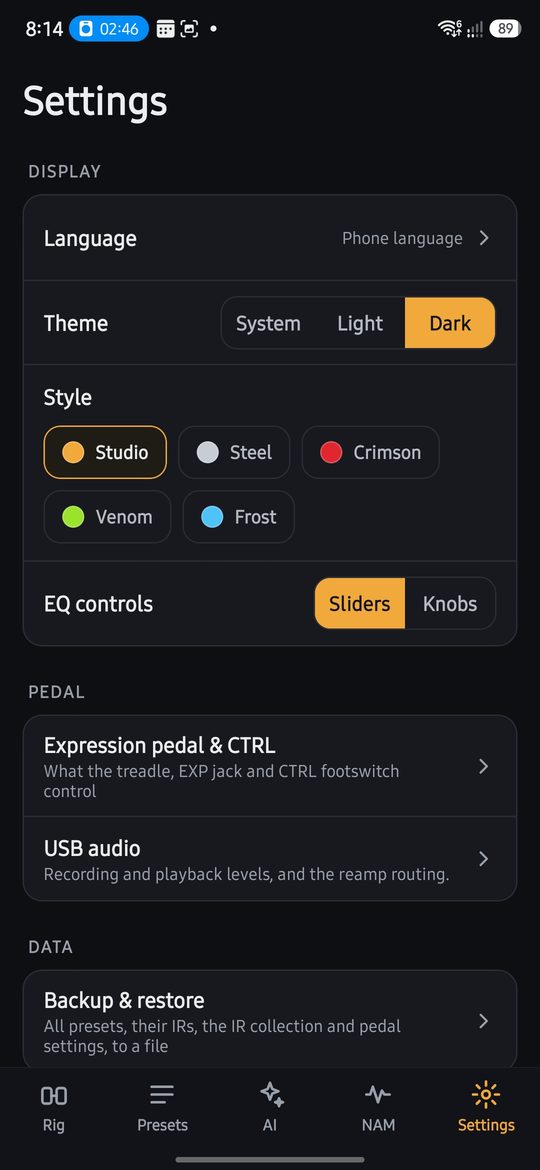
Display
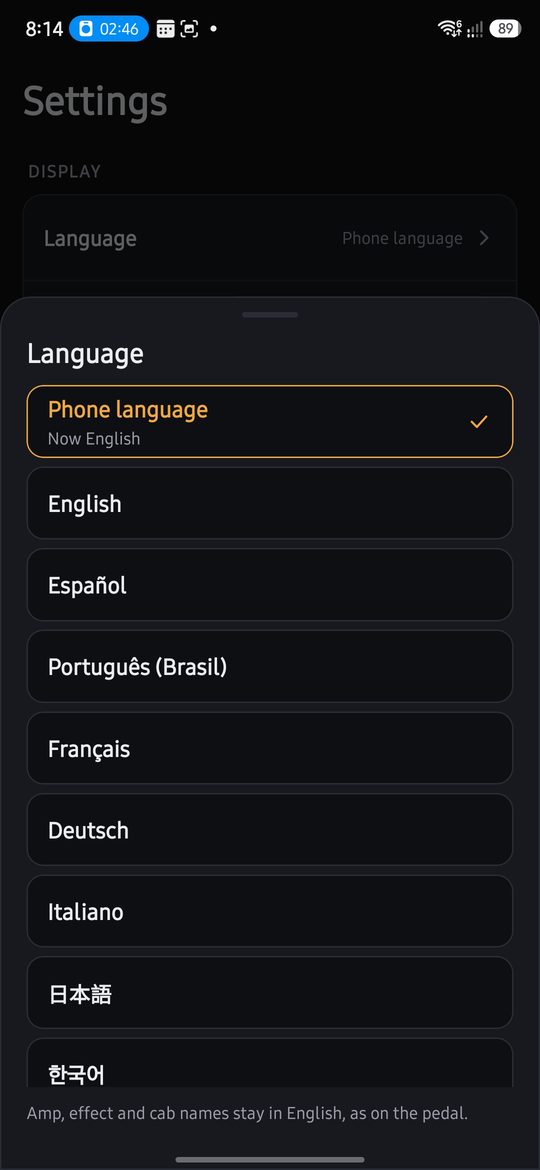
- Language: 15 languages, or follow the phone (English, Español, Português (Brasil), Français, Deutsch, Italiano, 日本語, 한국어, 简体中文, Bahasa Indonesia, Filipino, ไทย, Tiếng Việt, Русский, العربية). Amp, effect and cab names stay in English, as on the pedal.
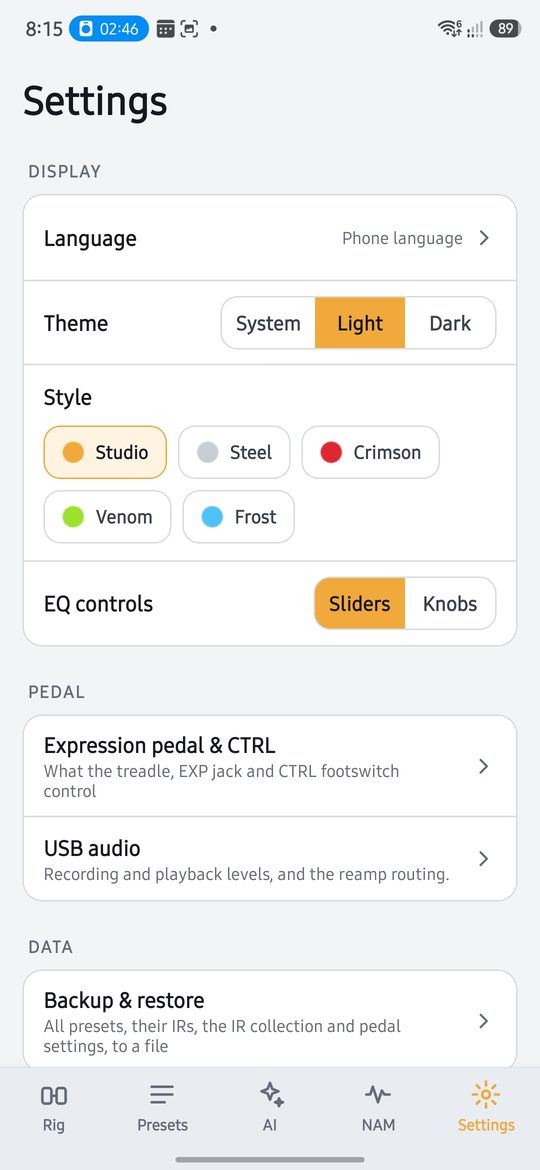
- Theme: System, Light or Dark.
- Style: Studio, Steel, Crimson, Venom or Frost.
- EQ controls: sliders or knobs.
Pedal: Expression pedal & CTRL and USB audio.
Data: Backup & restore.
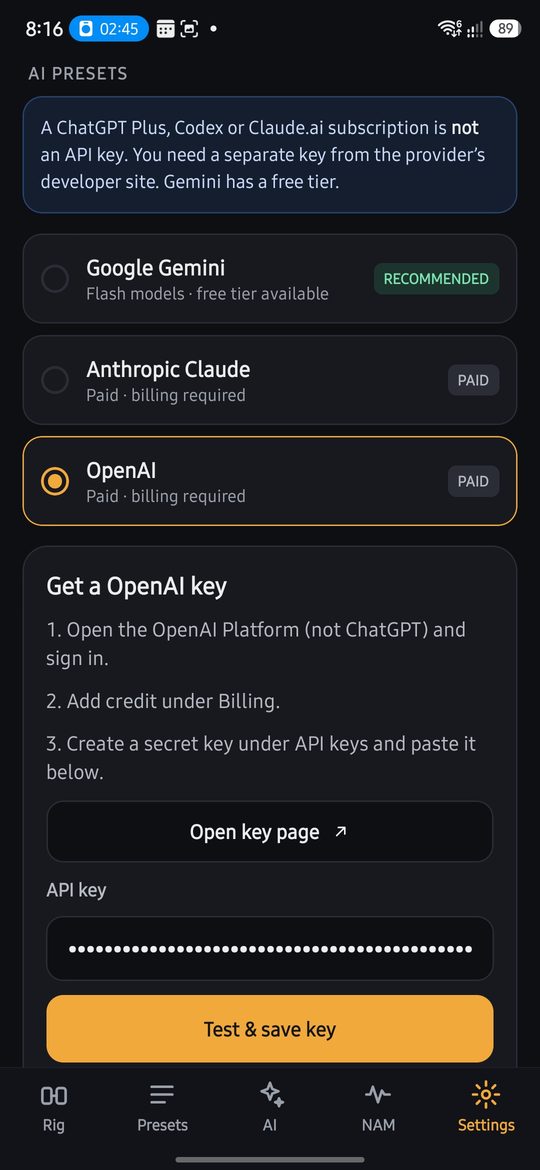
AI presets
- Choose a provider.
- Google Gemini is recommended: it has a free tier.
- Anthropic Claude and OpenAI need billing on their platforms.
- A ChatGPT Plus, Codex or Claude.ai subscription is not an API key. You need a key from the provider's developer site. Each provider has step-by-step instructions and an Open key page button.
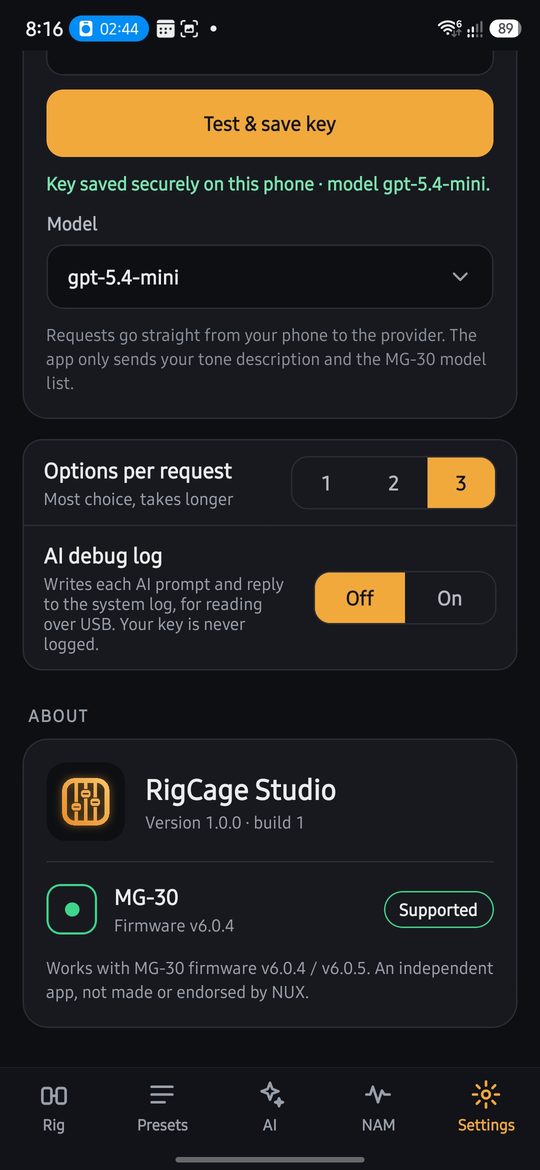
- Test & save key checks the key and stores it securely on this phone. You can then pick a model.
- Options per request: 1–3. Fewer is faster.
- AI debug log: off by default. It is only for troubleshooting over USB and never logs your key.
About: the app version, plus your pedal's model and firmware.
| Badge | Meaning |
|---|---|
| Supported | Firmware 6.0.4 or 6.0.5. Editing works. |
| View only | Other firmware. Nothing that writes is sent. |
| Offline | No pedal connected. |
12. Expression pedal & CTRL
| Control | What you set |
|---|---|
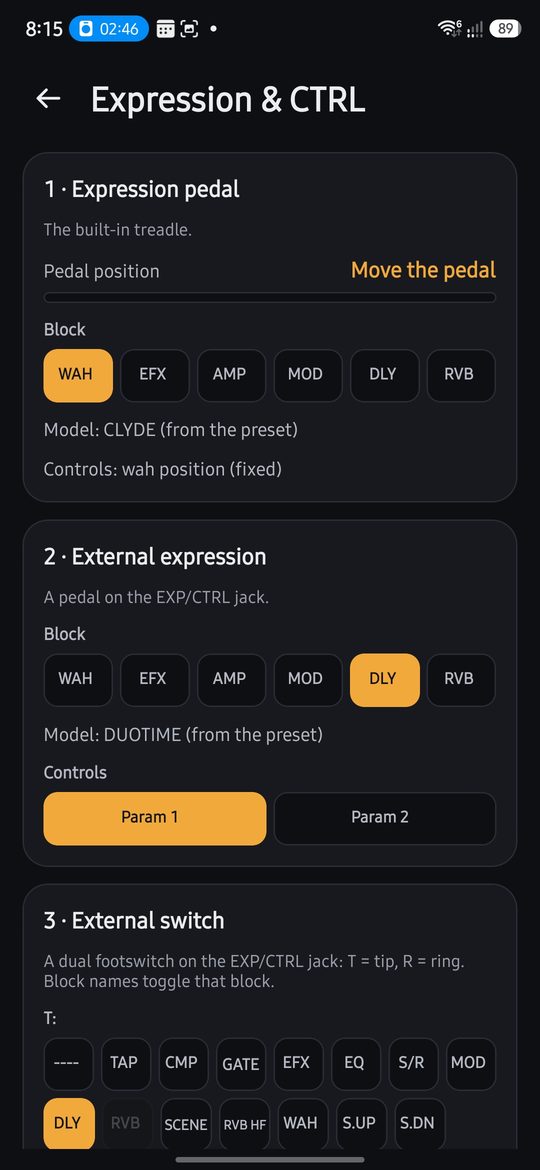
| 1 · Expression pedal (the built-in treadle) | Which block it controls and which parameter. Its live position is shown; move the pedal to see it. |
| 2 · External expression (a pedal on the EXP/CTRL jack) | Block and parameter. |
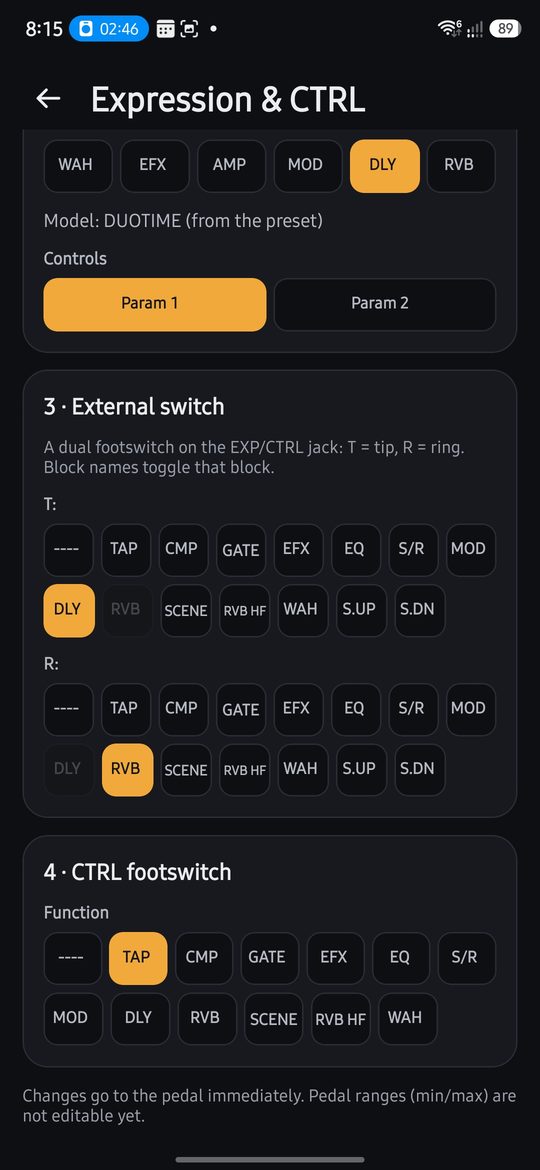
| 3 · External switch (a dual footswitch on the EXP/CTRL jack; T = tip, R = ring) | What each side does: TAP, a block on/off, SCENE, S.UP / S.DN, and more. |
| 4 · CTRL footswitch | Its function. |
Changes go to the pedal immediately.
13. USB audio
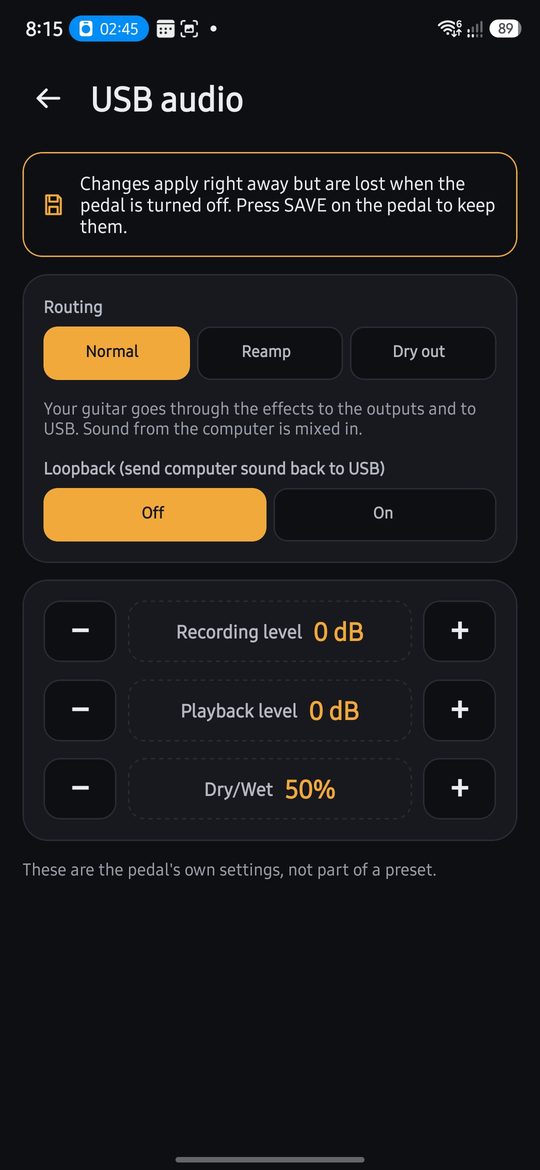
- Routing:
- Normal: your guitar goes through the effects to the outputs and to USB.
- Reamp: the computer's sound goes in through USB.
- Dry out: the dry guitar goes to USB.
- Loopback sends the computer's sound back to USB (for streaming).
- Recording level, playback level and dry/wet.
These are the pedal's own settings, not part of a preset. They apply right away but are lost when the pedal is turned off. Press SAVE on the pedal to keep them. QuickTone behaves the same way.
14. Backup & restore
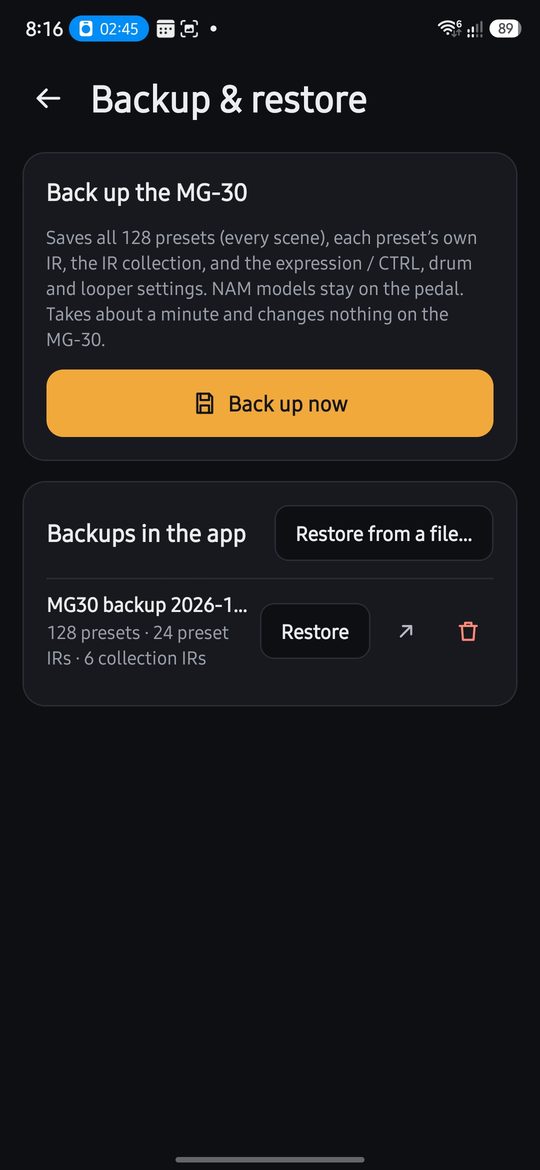
Back up now saves to one file:
- all 128 presets (every scene), and each preset's own IR;
- the IR collection;
- the expression / CTRL, drum and looper settings.
It takes about a minute and changes nothing on the MG-30. NAM models stay on the pedal; the backup lists which captures were loaded.
Backups in the app
- Restore a backup, share it (↗) or delete it.
- Restore from a file… loads a backup saved elsewhere.
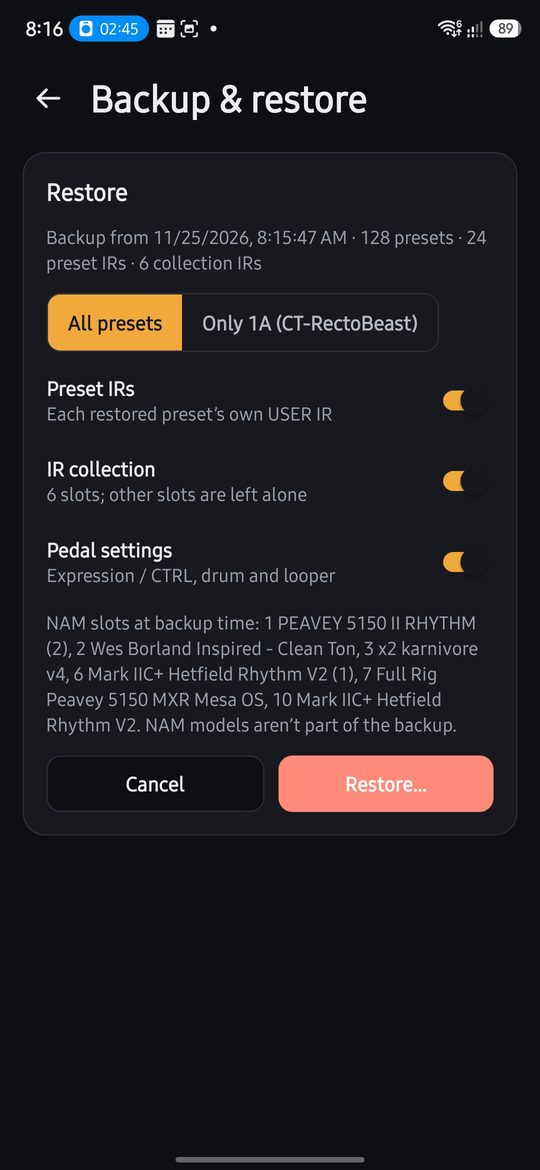
Restore
- Restore all presets or one preset.
- Choose whether to include the preset IRs, the IR collection and the pedal settings.
15. Troubleshooting
| Problem | Try |
|---|---|
| "Plug in the MG-30" stays on screen | Check the OTG adapter and cable, and use a data cable rather than a charge-only one. Unplug and replug, then tap the connection pill. |
| View only banner | The pedal isn't on firmware 6.0.4 or 6.0.5. Update it with NUX's MG-30 updater. |
| Tuner says "Waiting for a signal" | Play one string at a time and check the pedal's input level. The tuner restarts its audio on its own if nothing arrives. |
| USB audio settings reset after power-off | Press SAVE on the pedal after changing them. |
| AI says the key is invalid | Use an API key from the provider's developer site, not a chat subscription. Tap Test & save key again. |
| AI is slow | Set Options per request to 1, or pick a faster model (e.g. a Gemini Flash model). |
| A knob change didn't stick after switching presets | Changes are live until you Save. Unsaved edits are lost when you change preset (the header shows EDITED). |